
今天终于在宝塔官方看到一篇 DeepSeek-R1安装文章,该方法更简单省事,容器里一次把ollama和open-webui安装了,再科普下Ollama是一个开源框架,专为在本地机器上便捷部署和运行大型语言模型(LLM)而设计。Open WebUI是一款高度可扩展、功能强大且用户友好的自托管Web用户界面,专为完全离线操作设计。DeepSeek-R1系列模型是基于Transformer架构的大型语言模型,支持中英文双语处理。该系列模型通过不断优化算法和增加训练数据,逐步提升了模型的性能和适用性。
如何30秒安装一个DeepSeek-R1 AI模型?今天播播资源全部实操体验成功后分享给大家一起学习。服务器上Ollama+open-webui+DeepSeek-R1系列模型全部搞定
体验网址:http://uu.01j.top:3000
配置不满足运行模型会导致服务器卡死或无法访问,请正确选择服务器配置后部署!
各模型建议的服务器配置:
2c4g可以运行1.5b,想要更流畅的话建议到8g内存,此模型可以不需要GPU
8c16g可以运行7b/8b,此模型建议使用GPU运行,建议最少使用8G运存的GPU
腾讯云性能基准测试如下:
【1.5B模型:内存占用2G左右】
2c4g(S5):生成过程中,CPU占用100%
2c8g(S5):生成过程中,CPU占用100%
4c16g(S2):生成过程中,CPU占用100%
16c64g(SA2):生成过程中,CPU占用30~40%
【7B模型:内存占用7.6G左右】
4c8g(SA2):生成过程中,CPU占用100%
16c64g(SA2):生成过程中,CPU占用50%
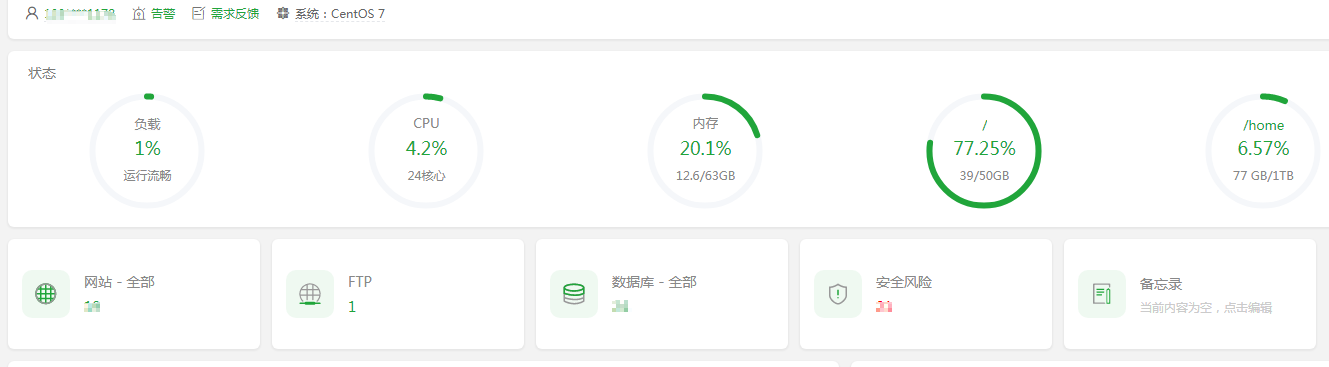
此使用帮助适用宝塔面板9.4.0以上的版本(2025年2月6日后发布的滚动修复包,请修复面板后安装DeepSeek-R1)
 https://img.cxhao.com/2025/02/20250210152835735-300x83.png 300w, https://img.cxhao.com/2025/02/20250210152835735-1024x283.png 1024w, https://img.cxhao.com/2025/02/20250210152835735-255x70.png 255w, https://img.cxhao.com/2025/02/20250210152835735-768x212.png 768w" sizes="(max-width: 1329px) 100vw, 1329px" data-mwl-img-id="7546" style="box-sizing: border-box; vertical-align: top; max-width: 100%; height: auto; margin: 0px;"/>
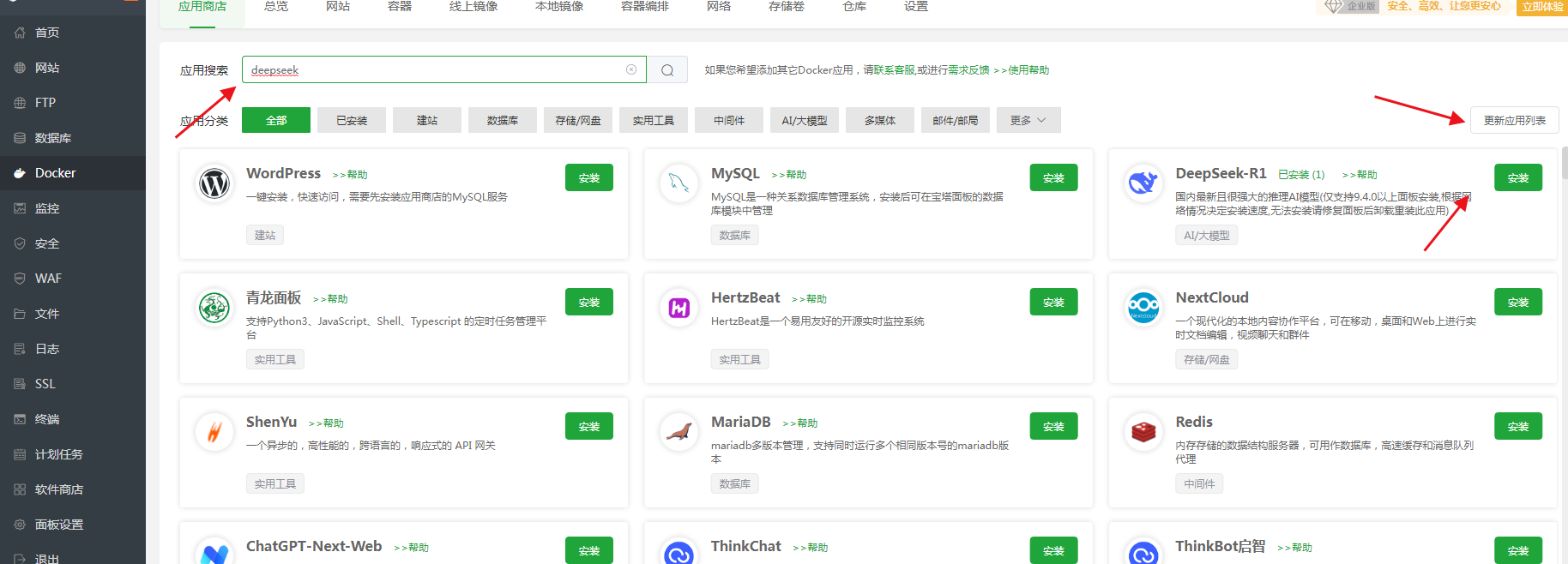
前往宝塔面板【Docker】-【应用商店】,点击DeepSeek-R1应用,点击安装即可,如果没显示DeepSeek应用,请点击右上角【更新应用列表】获取
 https://img.cxhao.com/2025/02/20250210144128373-300x108.png 300w, https://img.cxhao.com/2025/02/20250210144128373-1024x369.png 1024w, https://img.cxhao.com/2025/02/20250210144128373-255x92.png 255w, https://img.cxhao.com/2025/02/20250210144128373-768x276.png 768w, https://img.cxhao.com/2025/02/20250210144128373-1536x553.png 1536w" sizes="(max-width: 1828px) 100vw, 1828px" data-mwl-img-id="7527" style="box-sizing: border-box; vertical-align: top; max-width: 100%; height: auto; margin: 0px;"/>
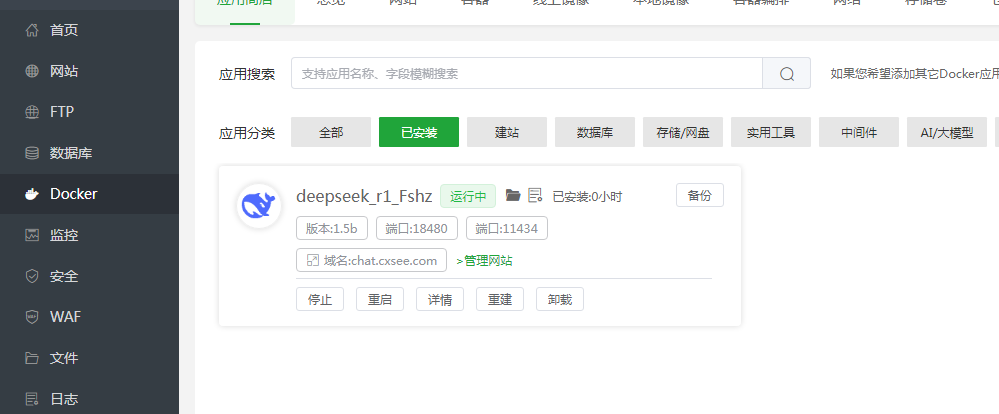
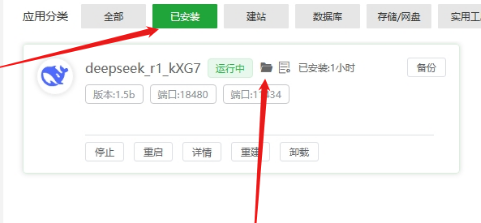
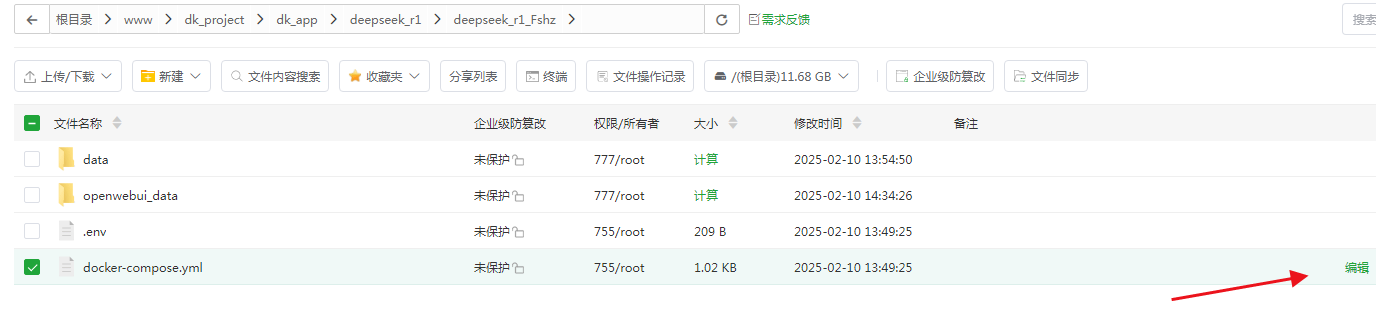
随后点击【已安装】应用的文件夹按钮,前往对应的应用目录(这里注意使用GPU时才需要这样操作),如果使用CPU默认不需要改可省略
 https://img.cxhao.com/2025/02/20250210144200658-300x124.png 300w, https://img.cxhao.com/2025/02/20250210144200658-255x106.png 255w, https://img.cxhao.com/2025/02/20250210144200658-768x318.png 768w" sizes="(max-width: 999px) 100vw, 999px" data-mwl-img-id="7528" style="box-sizing: border-box; vertical-align: top; max-width: 100%; height: auto; margin: 0px;"/>
 https://img.cxhao.com/2025/02/20250210144531358-300x139.png 300w, https://img.cxhao.com/2025/02/20250210144531358-255x118.png 255w" sizes="(max-width: 481px) 100vw, 481px" data-mwl-img-id="7532" style="box-sizing: border-box; vertical-align: top; max-width: 100%; height: auto; margin: 0px;"/>
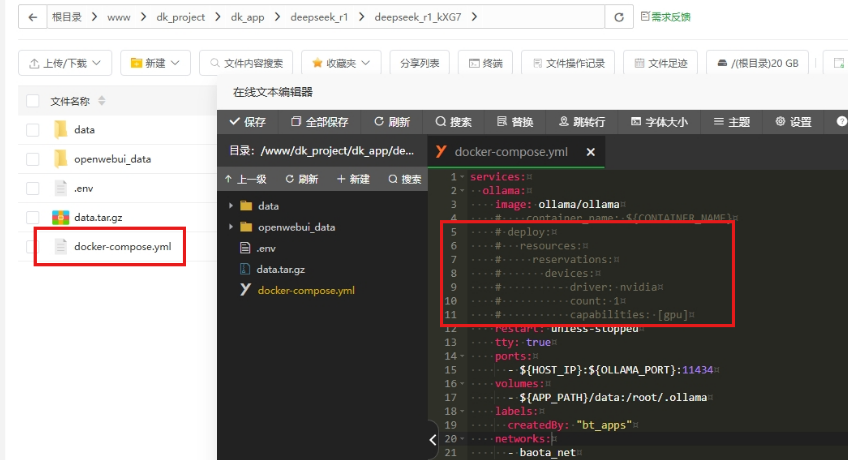
使用GPU时 编辑docker-compose.yml文件,将第5-11行的注释去掉,保存
 https://img.cxhao.com/2025/02/20250210144402824-300x71.png 300w, https://img.cxhao.com/2025/02/20250210144402824-1024x241.png 1024w, https://img.cxhao.com/2025/02/20250210144402824-255x60.png 255w, https://img.cxhao.com/2025/02/20250210144402824-768x181.png 768w" sizes="(max-width: 1376px) 100vw, 1376px" data-mwl-img-id="7529" style="box-sizing: border-box; vertical-align: top; max-width: 100%; height: auto; display: block; clear: both; margin: 0px auto;"/>
 https://img.cxhao.com/2025/02/20250210144501895-300x163.png 300w, https://img.cxhao.com/2025/02/20250210144501895-255x138.png 255w, https://img.cxhao.com/2025/02/20250210144501895-768x417.png 768w" sizes="(max-width: 848px) 100vw, 848px" data-mwl-img-id="7531" style="box-sizing: border-box; vertical-align: top; max-width: 100%; height: auto; margin: 0px;"/>
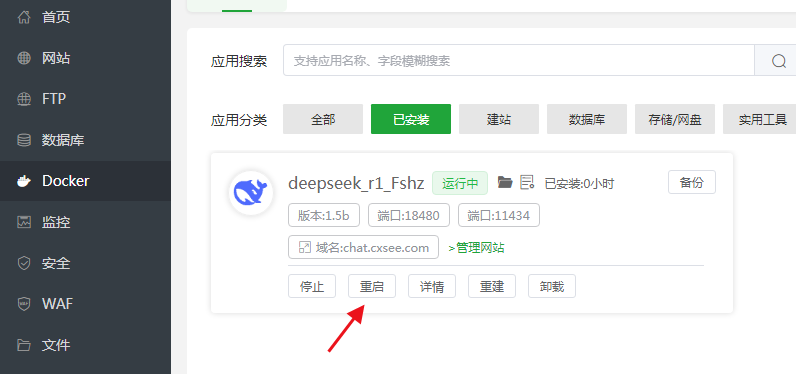
再回到【已安装】应用界面,将此应用重启即可启用GPU支持
 https://img.cxhao.com/2025/02/20250210144625803-300x141.png 300w, https://img.cxhao.com/2025/02/20250210144625803-255x120.png 255w, https://img.cxhao.com/2025/02/20250210144625803-768x361.png 768w" sizes="(max-width: 796px) 100vw, 796px" data-mwl-img-id="7533" style="box-sizing: border-box; vertical-align: top; max-width: 100%; height: auto; margin: 0px;"/>
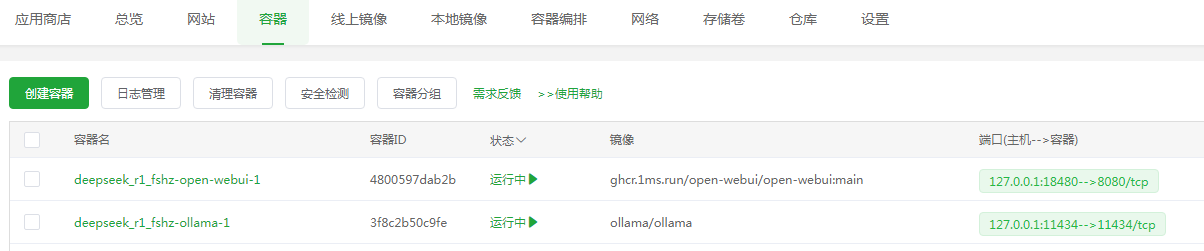
安装完成容器里面就有两个容器信息,该应用应该包含了Open WebUI一起
 https://img.cxhao.com/2025/02/20250210144745136-300x63.png 300w, https://img.cxhao.com/2025/02/20250210144745136-1024x213.png 1024w, https://img.cxhao.com/2025/02/20250210144745136-255x53.png 255w, https://img.cxhao.com/2025/02/20250210144745136-768x160.png 768w" sizes="(max-width: 1204px) 100vw, 1204px" data-mwl-img-id="7535" style="box-sizing: border-box; vertical-align: top; max-width: 100%; height: auto; margin: 0px;"/>
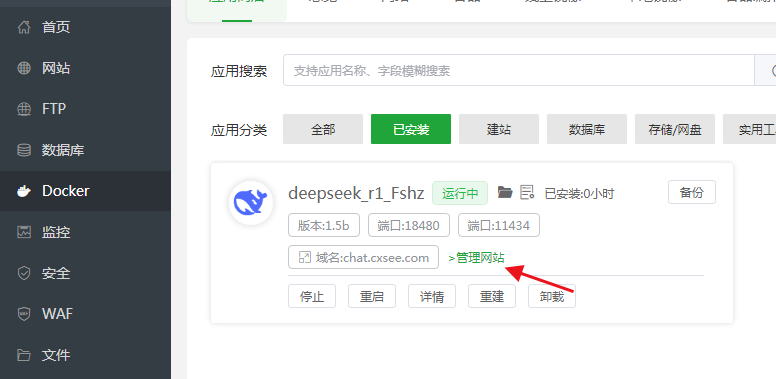
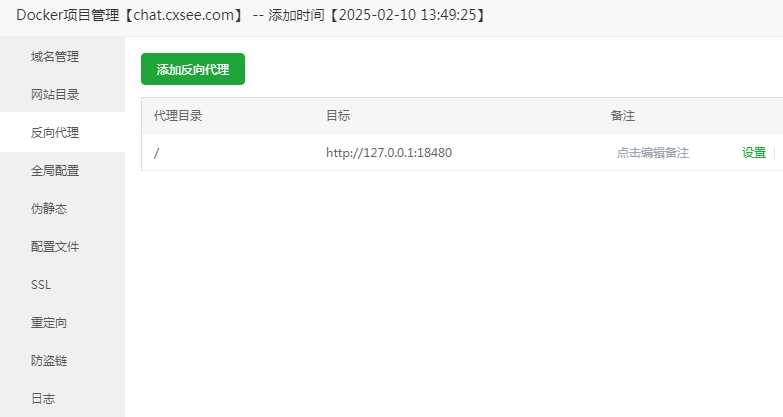
绑定域名访问,同时加个SSL,这样就可以通过域名打开访问Open WebUI前端了,包括反代什么的都自动帮你设置好了
也可以手动处理反代信息,注意把安全端口放行一下
 https://img.cxhao.com/2025/02/20250210145113709-300x160.png 300w, https://img.cxhao.com/2025/02/20250210145113709-255x136.png 255w, https://img.cxhao.com/2025/02/20250210145113709-768x409.png 768w" sizes="(max-width: 783px) 100vw, 783px" data-mwl-img-id="7538" style="box-sizing: border-box; vertical-align: top; max-width: 100%; height: auto; margin: 0px;"/>
完成通过域名访问,网址打开时会提示输入管理账号密码,需要设置下,设置好就能正常进入界面
 https://img.cxhao.com/2025/02/20250210145254320-300x197.png 300w, https://img.cxhao.com/2025/02/20250210145254320-229x150.png 229w, https://img.cxhao.com/2025/02/20250210145254320-768x503.png 768w" sizes="(max-width: 916px) 100vw, 916px" data-mwl-img-id="7539" style="box-sizing: border-box; vertical-align: top; max-width: 100%; height: auto; margin: 0px;"/>
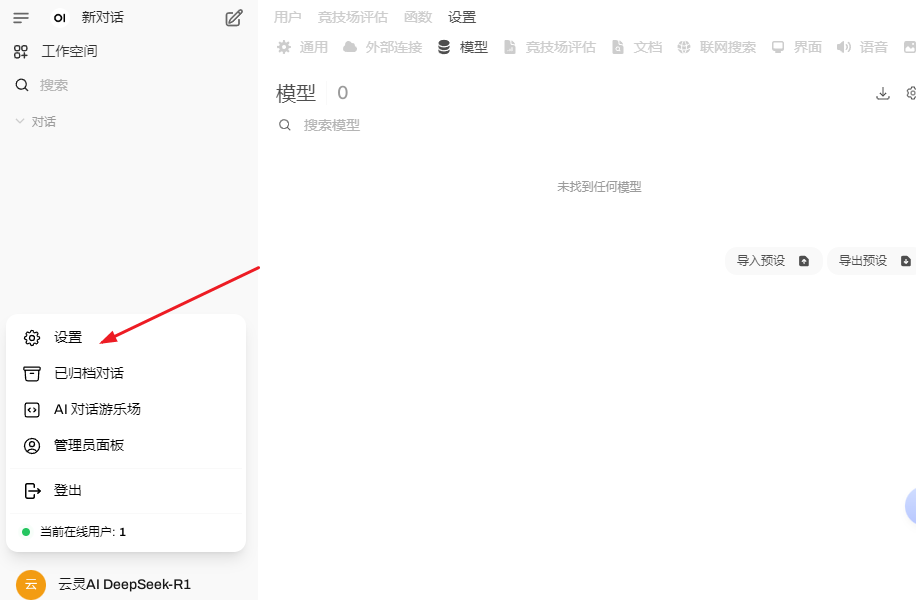
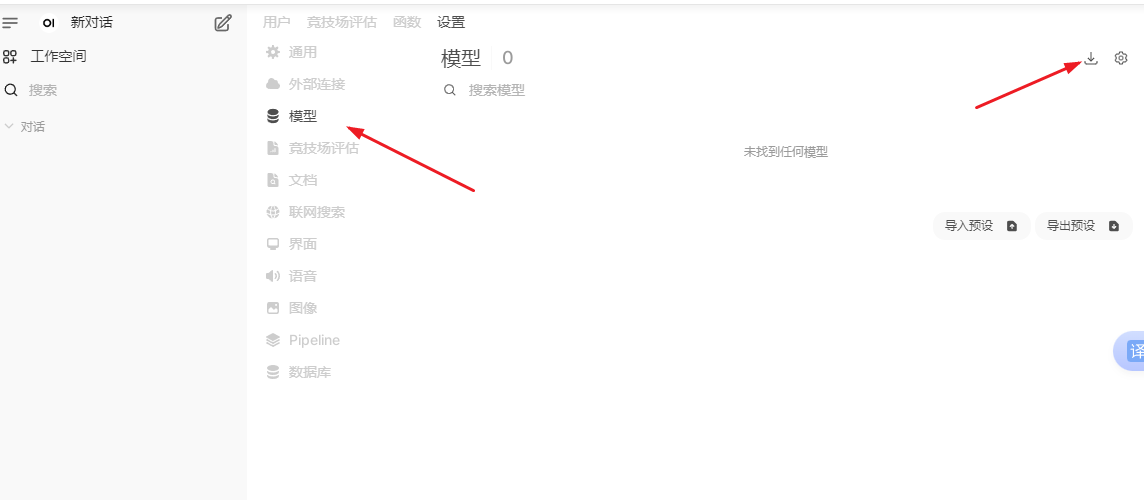
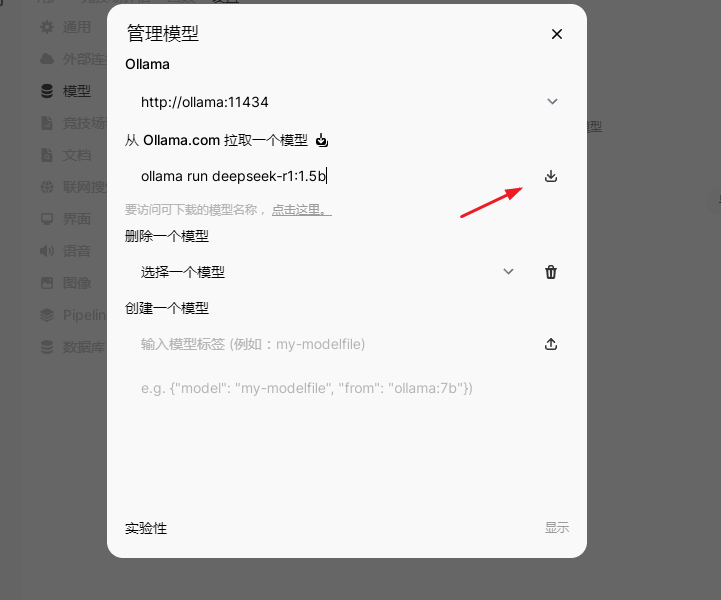
安装模型。在左下角打开设置找到模型,打开下载那个小图标
 https://img.cxhao.com/2025/02/20250210145553926-300x131.png 300w, https://img.cxhao.com/2025/02/20250210145553926-1024x448.png 1024w, https://img.cxhao.com/2025/02/20250210145553926-255x111.png 255w, https://img.cxhao.com/2025/02/20250210145553926-768x336.png 768w" sizes="(max-width: 1144px) 100vw, 1144px" data-mwl-img-id="7540" style="box-sizing: border-box; vertical-align: top; max-width: 100%; height: auto; margin: 0px;"/>
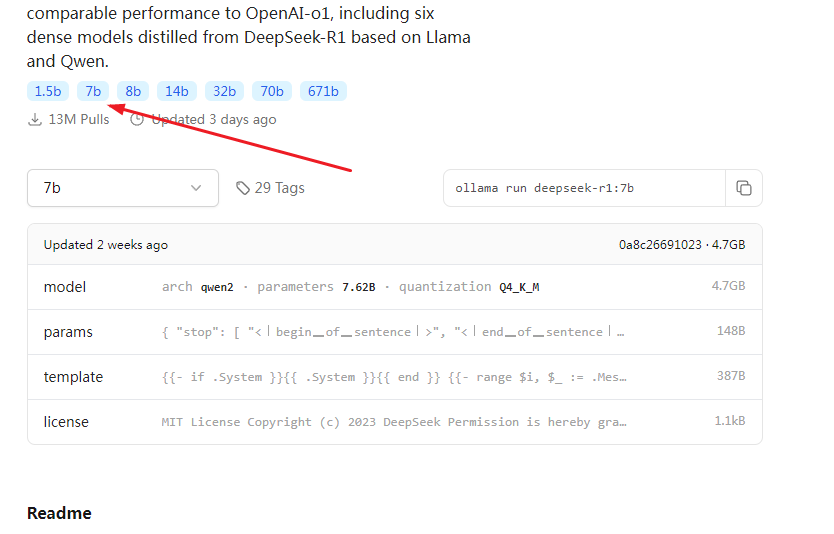
选择下载对应模型,具体需要下载什么模型可打开https://ollama.com/library/deepseek-r1:1.5b 查看
 https://img.cxhao.com/2025/02/20250210145650280-300x250.png 300w, https://img.cxhao.com/2025/02/20250210145650280-180x150.png 180w" sizes="(max-width: 721px) 100vw, 721px" data-mwl-img-id="7541" style="box-sizing: border-box; vertical-align: top; max-width: 100%; height: auto; margin: 0px;"/>
比如下载 ollama run deepseek-r1:7b 大小4.7G
 https://img.cxhao.com/2025/02/20250210145758644-300x192.png 300w, https://img.cxhao.com/2025/02/20250210145758644-234x150.png 234w, https://img.cxhao.com/2025/02/20250210145758644-768x492.png 768w" sizes="(max-width: 834px) 100vw, 834px" data-mwl-img-id="7542" style="box-sizing: border-box; vertical-align: top; max-width: 100%; height: auto; margin: 0px;"/>
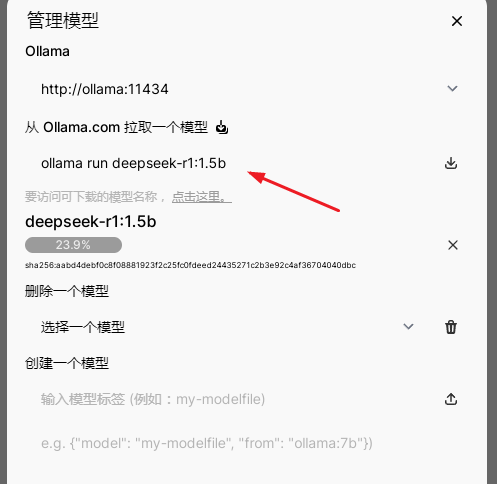
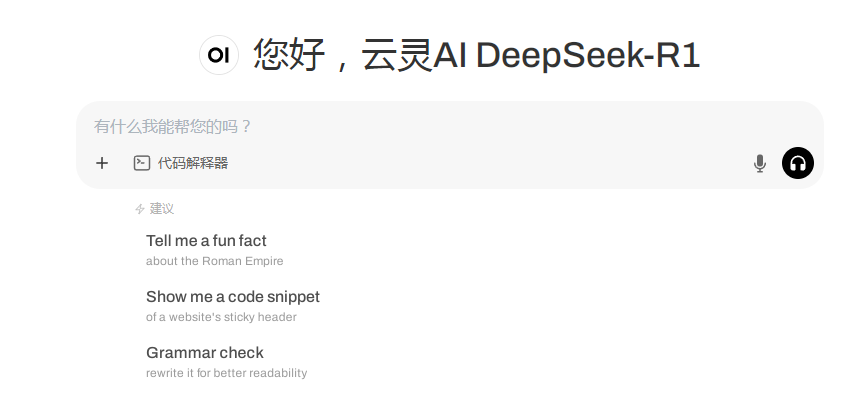
按理这步应该到此为止了,下载模型时老提示超时,这边模型也没下载成功,后面试了几次了几次下载成功,下了个最小的ollama run deepseek-r1:1.5b 大小1.5G ,模型下载非常慢
 https://img.cxhao.com/2025/02/20250210152629912-300x292.png 300w, https://img.cxhao.com/2025/02/20250210152629912-154x150.png 154w" sizes="(max-width: 497px) 100vw, 497px" data-mwl-img-id="7545" style="box-sizing: border-box; vertical-align: top; max-width: 100%; height: auto; margin: 0px;"/>
 https://img.cxhao.com/2025/02/20250210150142705-300x146.png 300w, https://img.cxhao.com/2025/02/20250210150142705-255x124.png 255w, https://img.cxhao.com/2025/02/20250210150142705-768x375.png 768w" sizes="(max-width: 844px) 100vw, 844px" data-mwl-img-id="7543" style="box-sizing: border-box; vertical-align: top; max-width: 100%; height: auto; margin: 0px;"/>
【常见问题】
1、安装成功了,但无法看到DeepSeek界面,原因是什么?
安装部署完成后,软件首次启动需要花 2 - 10 分钟时间,启动完成后可以看到 Web 界面。
2、安装成功了,但是模型输出很慢,原因是什么?
模型可能会占用大量的资源(CPU/内存/GPU),如果无法正常使用,请切换低级别的模型使用。
3、部署成功后,模型访问提示500,原因是什么?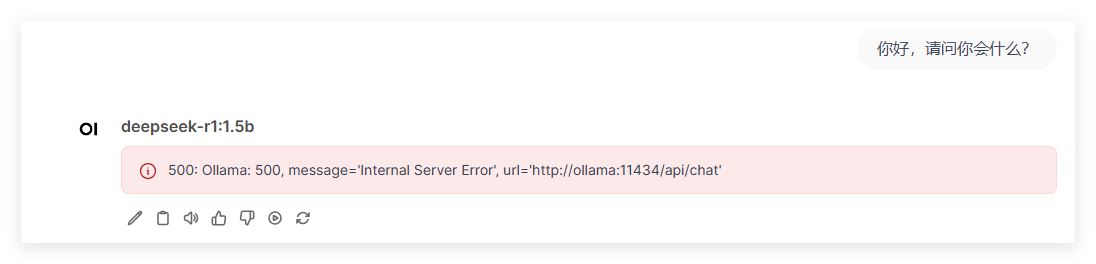
请检查服务器内存是否足以支撑模型运行,例如:1.5b的模型需要至少1.5GB的活动内存(具体信息请查看ollama容器的日志)
4、无法访问?
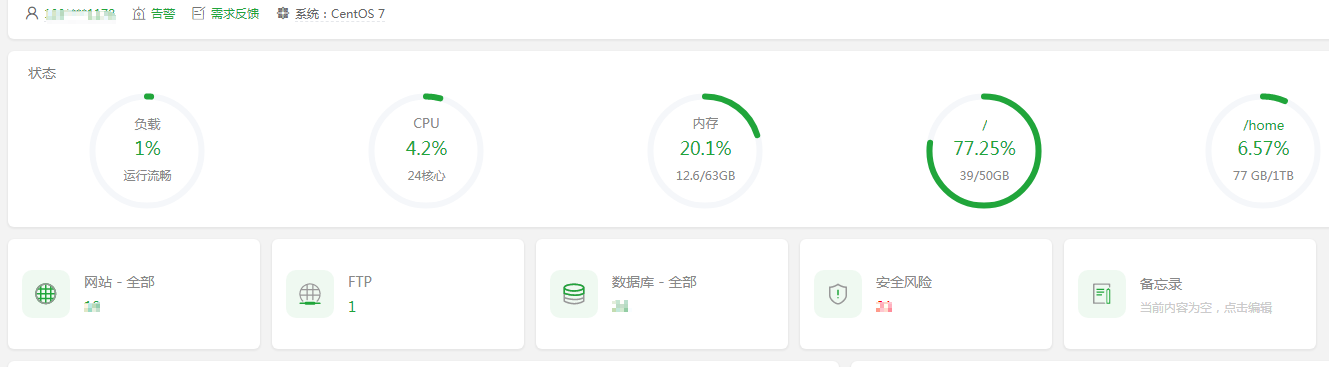
注意:应用不经过系统防火墙,如果您不填写域名,勾选【允许外部访问】后是直接允许外部访问,如果您是云服务器,勾选【允许外部访问】后,请到服务器安全组放行此数据库的端口
 渝公网安备50022202000470
渝ICP备2023013153号-1 Powered by qibosoft X1.0 Code ©2003-2020
渝公网安备50022202000470
渝ICP备2023013153号-1 Powered by qibosoft X1.0 Code ©2003-2020
 网络攻城狮
网络攻城狮